

Weather: Live radar & widgets
Weather Forecast & Widget & Radar
Weather: Live radar & widgets is the kind of weather app I would suggest to someone who wants more than a single temperature number but does not want to build a complicated forecasting routine. It brings forecasts, radar, and home-screen widgets together in one place, so I can check the day quickly and then look closer when rain or changing conditions matter. After using it, I found its strongest quality is not one spectacular tool, but the way it connects a quick glance with a more visual check.
That makes it useful for ordinary decisions: whether to walk instead of drive, when to leave for an appointment, whether outdoor plans need a backup, or if a jacket is sensible before heading out. The app is free to install, available to Everyone, and works on devices running Android 6.0 or later. It comes from Weather Forecast & Widget & Radar, and its broad audience is reflected in a 4.7 average from around 393 thousand ratings.
What to expect before you rely on it
I would approach this as a practical local weather app, not as a specialist meteorology workstation. The main experience is built around current conditions, forecast information, radar viewing, and widgets. That combination is more helpful than a basic forecast-only app when the question is not simply “what is the temperature?” but “will the weather change before I get there?”
The radar view is especially valuable for short-term decisions. A forecast can tell me that rain is possible, while a radar-style view helps me understand whether a band of precipitation is moving toward my area. I still treat that picture as guidance rather than a guarantee. Weather changes quickly, and a visual map can encourage false confidence if I assume every cloud or color means the same thing everywhere.
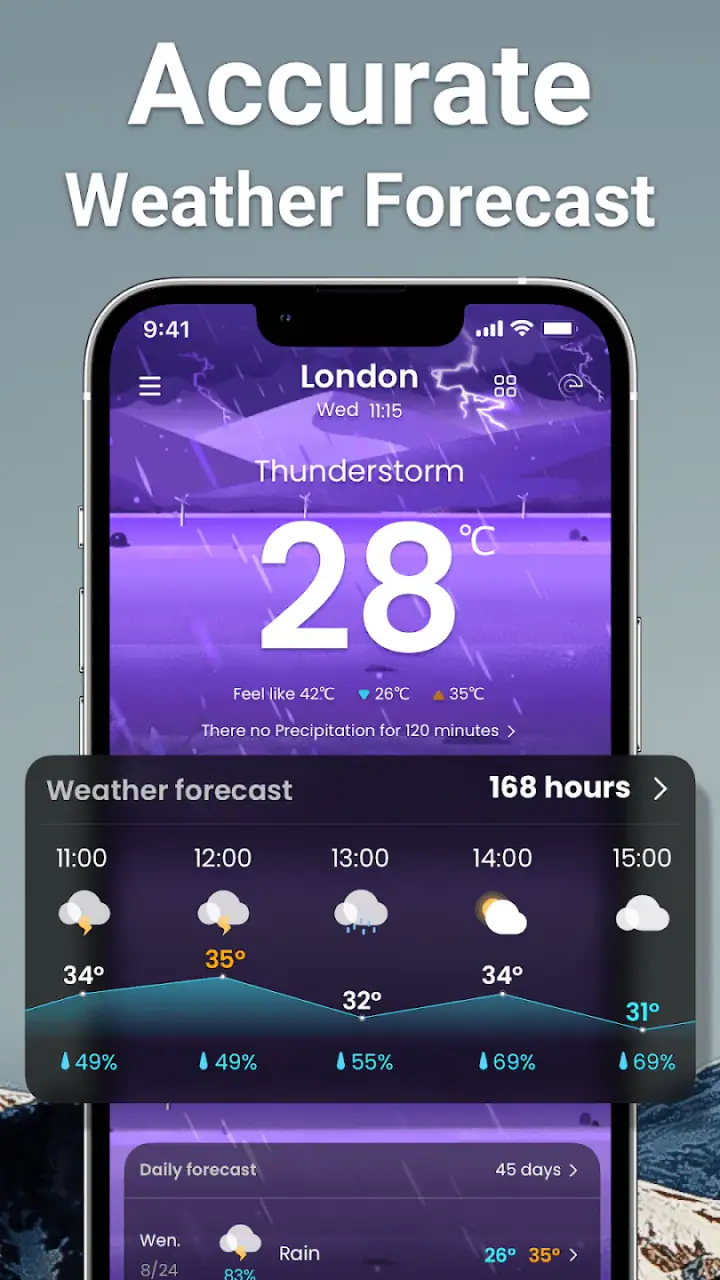
The widgets are a useful reason to keep this app installed even if I do not open it constantly. A good widget turns weather checking into a glance at the home screen. That is convenient for school runs, commuting, dog walks, deliveries, and outdoor work. It also reduces the temptation to open the app repeatedly just to check a basic condition.
Related News

Instagram Is No Longer a Photo App. It Is an Attention Engine

Microsoft Teams Mobile: When Collaboration Becomes Navigation

How the NFL App Adapts to Android and iOS Updates

Temu: Elevate Your Shopping Experience to Billionaire Status

Why Traffic Rider Works Best as a Precision Reflex Game
How Google’s Find Hub Transforms Everyday Searches
At the same time, people who only want an extremely minimal temperature display may find the combination of forecast, radar, and widget options more than they need. If I wanted a weather service mainly for severe-weather alerts, highly specialized aviation information, or deep climate data, I would look for a tool designed specifically around that purpose. This app makes more sense as an everyday companion.
Its popularity is substantial, with over 10 million installs and around 27 thousand written reviews. Those figures suggest that it has reached a wide range of Android users, but popularity does not remove the need to test it against my own routine. A weather app succeeds when its information is easy to interpret at the exact moment I need it.
The information is most useful when I ask a specific question
One habit improved my experience: I stopped opening the app just to browse. Instead, I used it to answer one practical question at a time. “Can I walk home in the next hour?” calls for a radar check. “What should I wear this morning?” calls for current conditions and the near forecast. “Is Saturday suitable for a picnic?” calls for a broader forecast view.
Gallery
This sounds simple, but it prevents one common weather-app problem: staring at several screens without making a decision. The app gives me more value when I connect each view to an action. The radar is not merely something interesting to watch; it is a way to judge timing. The widget is not decoration; it is a shortcut for routine checks.
Setting it up without getting lost
My recommended first setup is deliberately modest. Install the app, open it, and begin with the place where you spend most of your time. If the app asks for location access, I would choose the option that matches my comfort level and daily needs. Someone who travels frequently may prefer location-based convenience, while someone who stays mostly in one area may be happier selecting a location manually.
The important point is to confirm that the displayed place is actually the one I want. Weather apps can be technically correct while still being unhelpful if they show a nearby town, a workplace, or an old saved location. Before judging the forecast, I check the location name and make sure it matches my normal starting point.
After that, I would spend a minute deciding what I need from the home screen. If I mainly need a quick morning check, a compact widget is likely enough. If I want conditions visible throughout the day, a larger widget may be more useful, provided it does not crowd out the other information I use. I prefer to place it where my thumb or eyes naturally go rather than hiding it on a secondary screen.
Android users should also remember that widgets are added from the phone’s home-screen controls, not always from inside the weather app itself. The exact gesture can differ by device, so a long press on an empty area of the home screen is the usual starting point. If the widget does not appear immediately, I would finish the app’s initial setup first and then check the widget list again.
The version I reviewed is 2.1.0. Because Android phones handle widgets and background activity differently, the same layout may feel slightly different from one device to another. That is not necessarily a problem with the app. It is worth checking the widget after placing it, especially if the text looks cramped or the information is difficult to read against the chosen background.
How I would choose between the app and paid extras
The app itself is free, which makes it easy to try without committing money first. It also includes in-app purchases priced from $5.99 to $9.99 per item. I would not decide about those immediately. First, I would use the free experience for several days and ask whether the forecast, radar, and widget already solve my normal weather questions.
That approach matters because a paid option is only worthwhile if it removes a real annoyance or adds something I will use repeatedly. I would not pay simply because a premium prompt appears during setup. I would first identify the exact benefit, consider how often I need it, and compare that with the fact that the basic app already covers the central weather workflow.
For a first-time user, the safest path is to establish a routine before changing anything: check the widget in the morning, open the forecast when planning the day, and use radar when timing matters. Once I know which part of the app I actually depend on, a purchase decision becomes much clearer.
Getting to the first useful result
The first meaningful success is not installing a widget. It is making a decision with the information on screen. I tested the app mentally against a familiar situation: I have an appointment in the afternoon, need to walk part of the way, and do not want to carry an umbrella unless it is genuinely useful.
I would start with the current location and the forecast for the relevant period. If rain appears possible, I would move to the radar view and look for the direction and movement of the precipitation near my area. Then I would compare that with the time I expect to leave, rather than treating the whole day as equally wet or equally dry.
That workflow can change a simple choice. A forecast that looks unpleasant for the entire afternoon may actually show a short window that is comfortable for walking. On another day, a generally acceptable forecast may hide a developing shower at exactly the wrong time. The useful question is not whether the day is good or bad, but whether the conditions fit my schedule.
I also like using the widget as a second opinion before opening the full app. If the temperature or current condition looks different from what I expected, that is my signal to investigate rather than ignore it. A widget should support a quick decision, while the full forecast and radar help explain why that decision makes sense.
A better routine for commuting and errands
For commuting, I would check the widget before leaving home and then use radar only when the forecast suggests changeable conditions. This avoids spending time watching the map on clear days. If I am cycling, walking, or taking public transport, I would pay more attention to precipitation timing than to the daily high temperature.
For errands, the app is useful when several short trips are involved. I might check whether it is better to do the outdoor task now and the indoor task later, or whether a quick trip can fit between showers. This is one of the less obvious benefits of having radar and forecast information together: I do not need to switch between a basic forecast and a separate map just to form a short-term plan.
For outdoor work, I would use the app as a planning aid but not as the only safety source. A forecast can help arrange tasks, but it should not replace official warnings or local instructions when conditions become dangerous. That distinction is important, especially because a clean visual interface can make uncertain information feel more definite than it really is.
Where first-time users may become confused
The biggest possible confusion is treating every part of the app as equally precise. Current conditions, a general forecast, and a radar image answer different questions. I would not compare them as if they were three versions of the same measurement. Current conditions describe what is happening around the selected location, the forecast describes expected conditions over time, and radar helps visualize precipitation patterns.
Another point of friction is location selection. If the app shows a place that is close but not identical to my neighborhood, the forecast may still be broadly useful while missing local differences. Coastal areas, hills, large cities, and places near open countryside can experience noticeably different weather within a short distance. I would verify the selected location before concluding that the forecast is inaccurate.
Radar can also be misunderstood by new users. The colors and movement are helpful for spotting patterns, but they do not turn the app into a promise about the exact minute rain will begin at my front door. I use the map to create a buffer in my plans. If I see precipitation approaching, I avoid scheduling a tight outdoor transition that leaves no room for delay.
Widgets bring their own practical trade-off. Their value depends on being readable and current on my particular phone. If a widget is too small, I may spend longer interpreting it than I would spend opening the app. If it takes too much space, I may remove it after a few days. I would try a compact layout first, then enlarge it only if the information is genuinely hard to scan.
There is also a difference between a weather app that I enjoy exploring and one that I use reliably. Extra visual detail can be helpful when I am planning, but it can slow me down during a rushed morning. My preferred setup is therefore minimal on the home screen and more detailed inside the app. That gives me speed without giving up the radar when I need it.
When another weather option may suit me better
I would skip this app if my main requirement is a highly specialized source for professional forecasting, maritime planning, aviation, or emergency monitoring. Its everyday combination of local forecast, radar, and widgets is easier to appreciate when my needs are ordinary and location-focused.
I might also choose a simpler alternative if I never use radar and dislike widgets. In that case, a basic weather screen built into the phone could be quicker and less distracting. Installing a broader tool only makes sense when I will actually use the extra context.
On the other hand, I would choose this app over a bare temperature app when my plans depend on timing. The ability to move from a quick widget check to a visual precipitation view gives it a practical advantage for walks, commutes, errands, and outdoor appointments. It is not necessarily better for every weather enthusiast, but it is more capable than a single-number display.
Small habits that make it more useful
My first tip is to use the widget as a trigger, not as the entire forecast. A glance tells me whether conditions deserve attention. When something looks uncertain, I open the app and check the relevant time period. This keeps the home screen useful without making me interpret too much information at once.
My second tip is to compare timing with the actual plan. If I am leaving at midday, a daily summary is too broad to guide that decision on its own. I look at the forecast around the departure and return windows, then use radar if precipitation is part of the concern. This is more reliable than deciding based on the day’s worst-looking symbol.
My third tip is to build in a buffer when the radar shows movement near my route. I do not wait until rain is directly overhead before changing plans. A few extra minutes can be the difference between arriving comfortably and being caught outside. The app is most useful when it helps me act early rather than merely confirm that rain has already started.
My fourth tip is to keep the selected location honest. When I travel, I would update or switch the location rather than continuing to read the forecast for home. When I return, I would check that the app has not stayed focused on the temporary place. This simple check prevents many apparent forecast mistakes.
Finally, I would review whether the widget is still helping after a week. If I ignore it, I would move it to a more visible position or remove it and rely on the full app. The best setup is not the one with the most information; it is the one that makes the right information easy to reach.
My final experience with the app
Weather: Live radar & widgets works best when I treat it as a decision tool rather than a screen to browse. The free entry point, familiar weather layout, radar view, and widget support make it approachable for first-time users, while the combination gives it more depth than a basic forecast shortcut. The developer, Weather Forecast & Widget & Radar, has focused the product on the everyday connection between local conditions and practical planning.
It is not perfect for every user. Radar requires sensible interpretation, widgets may need adjustment on different Android phones, and people seeking specialist forecasting may prefer a dedicated service. I also think it is wise to try the free experience thoroughly before considering the available in-app purchases. The app becomes valuable through repeated use, not through immediately enabling every option.
For me, the strongest reason to recommend it is the path from glance to action: check the widget, open the forecast when the plan matters, and use radar when timing is uncertain. That workflow feels reassuring for a first-time user because it does not demand technical knowledge. If you want a weather radar and widget app for commutes, errands, walks, and ordinary outdoor planning, I think it is worth trying. If all you need is a temperature reading, it may be more than necessary, but for flexible day-to-day decisions, Weather: Live radar & widgets is a capable and approachable choice.
FAQs for Weather: Live radar & widgets
What features does Weather: Live radar & widgets offer?
Weather: Live radar & widgets provides real-time radar images, detailed weather forecasts, and customizable widgets for your home screen. It includes hourly, daily, and weekly forecasts, severe weather alerts, and interactive radar maps. The app also offers features like sunrise/sunset times, air quality index, and weather animations to enhance user experience.
Is Weather: Live radar & widgets available for both Android and iOS?
Yes, Weather: Live radar & widgets is available on both Android and iOS platforms. You can download it from the Google Play Store for Android devices and the Apple App Store for iOS devices. Ensure your device’s operating system meets the app's requirements for optimal performance.
Does Weather: Live radar & widgets require a subscription for premium features?
Weather: Live radar & widgets is free to download with basic features available. However, it offers a premium subscription for additional features such as ad-free usage, advanced radar options, and extended forecast data. Users can choose a subscription plan that best fits their needs to access these premium features.
How accurate is the weather information provided by the app?
The app uses data from reliable meteorological sources and advanced algorithms to offer accurate weather forecasts. While no weather app can guarantee 100% accuracy, Weather: Live radar & widgets aims to provide timely and precise information by constantly updating its data and utilizing live radar imagery for current conditions.
Can I customize the widgets in Weather: Live radar & widgets?
Yes, the app offers a variety of customizable widgets that can be tailored to display the information most important to you. Users can select different widget sizes, themes, and data types—like temperature, precipitation, or wind speed—to ensure their home screen provides the weather details they need at a glance.
Pros
- Accurate weather updates
- User-friendly interface
- Customizable widgets
- Real-time radar tracking
- Available offline forecasts
Cons
- Ads can be intrusive
- Limited free features
- High battery usage
- Occasional lag in data
- Subscription can be pricey


